How to read it
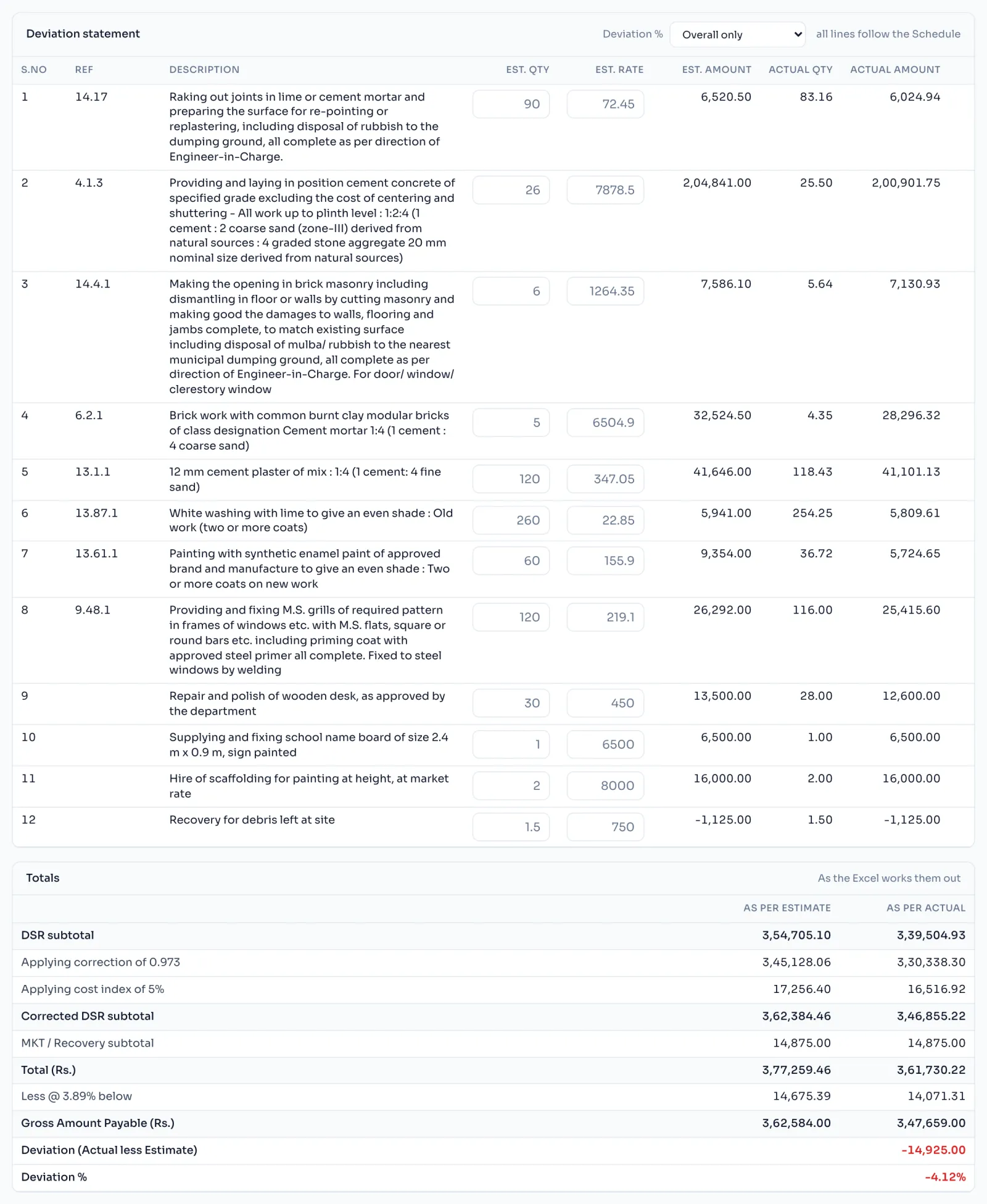
- On the bill, press Deviation in the row of tabs.
- Est. qty, Est. rate and Est. amount come from your Schedule of Work.
- Actual qty and Actual amount come from your measurements.
- A plus figure is an excess over the estimate, and a minus figure is a saving.
- Choose Deviation %: Overall only, or Per item and overall. Your choice is kept and used in the excel and the PDF.
Things to know
- Leave the estimate boxes empty and the sheet follows your Schedule, which is what you want most of the time.
- If the sanctioned quantity or rate is different from your schedule, type it in that item's box.
- An item with no measurements shows a dash on the actual side.
- The Totals panel runs the same chain as the excel, down to the Gross Amount Payable.
How it is worked out
The deviation is the actual less the estimate:
Deviation = Actual amount less Est. amount, and Deviation % = Deviation / Est. amount x 100
| Item | Est. amount | Actual amount | Deviation | Deviation % |
|---|---|---|---|---|
| 13.1.1 | 41,646.00 | 41,101.13 | -544.87 | -1.31% |
Overall only prints one Deviation % for the whole bill, on the two final amounts. Per item and overall also prints one for each item, and per item it compares the quantities: (Actual qty less Est. qty) / Est. qty.
If you see this message
Not a number, so the Schedule is used.
A sanctioned figure you typed is not a number. Correct it, or clear the box to use the Schedule.