How to find one
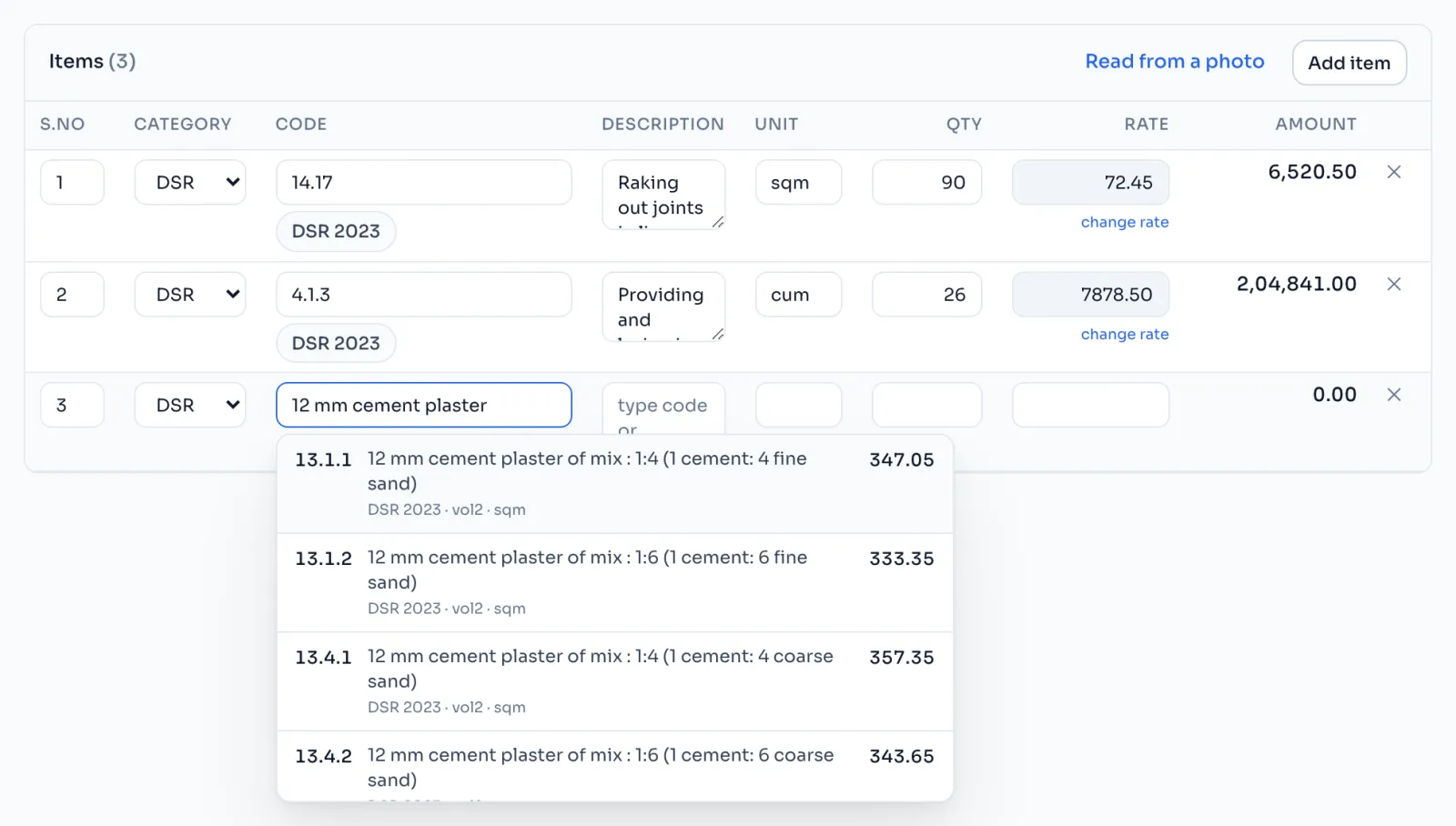
- On the Schedule, click the Code box of an item.
- Type the code, like 13.1.1, or a few words from the description, like cement plaster.
- The list shows each matching item with its code, description, book, volume, unit and rate.
- Pick the right one with the mouse, or with the arrow keys and Enter.
Things to know
- The search looks only in the rate book of this tender. An item from another book does not come up at all.
- One code, more than one item. A few codes name more than one item at different rates. The list warns you, and Enter will not pick one for you, so read the descriptions and pick the right one.
- Carriage items show the word carriage instead of a rate, because their rate depends on the lead distance. DSR 2023 has 76 of them and DSR 2016 has 77. Type the rate for your lead yourself.
- Items that are not in the book, like a market rate item, are typed by hand with the MKT category. Add items
How it is worked out
When you pick an item, three things come from the book and one comes from you:
Amount = Qty x Rate, with the rate from the book and the Qty from your schedule
For item 13.1.1 on DSR 2023, 12 mm cement plaster 1:4, the book rate is 347.05 per sqm. With a Qty of 120 sqm:
| Working | Amount | |
|---|---|---|
| Item 13.1.1 | 120 x 347.05 | 41,646.00 |
The factor, the cost index and the quoted % are applied later, on the bill, not to this amount.
If you see this message
This code has more than one item, at different rates. Please pick the right one.
Read the descriptions in the list and pick the one your schedule means.